Daniel Tay · · 4 min read
This app lets you copy and paste stuff between your laptop and smartphone seamlessly
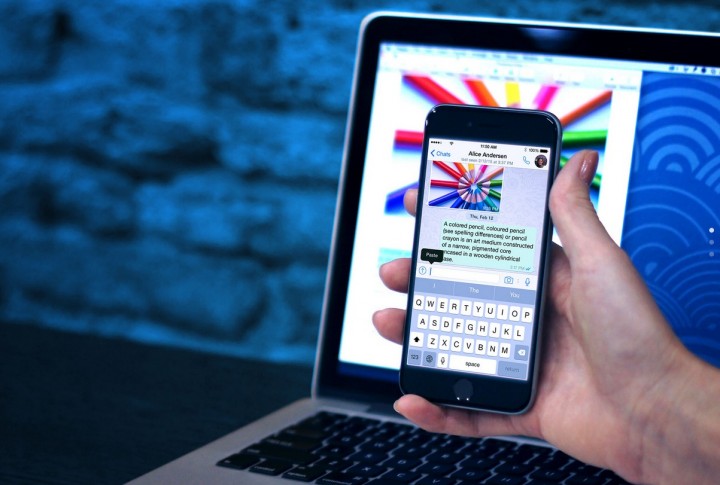
If you’re in the business of tech like me (and if you’re reading this, chances are that it is so), you probably often find yourself sending things back and forth between your laptop and your smartphone to get work done. Chances are that you find it a pain in the butt to accomplish.
As an example, whenever I attend events, I often use my iPhone’s camera to grab shots for use in articles. To move the images to my laptop, I typically transfer them into my Dropbox or Pushbullet app, and open then open them in the corresponding folder or app on my Macbook. Not too difficult, but not exactly seamless either.
Which is why I was really excited when I received an email from mobile app startup Tinker, introducing me to an app it had created called Pasteasy. On its website is the bold claim, “Copy on the phone, paste on the computer […] lightning fast […] super simple & convenient.”
Naturally, I had to give it a shot. As proudly proclaimed on the website, founder Neeraj Jhanji says that Pasteasy would allow me to instantly copy and paste text and photos directly between my devices. All I had to do was install the respective apps on my Macbook and iPhone, and pair them up via wifi – no login or registration necessary.
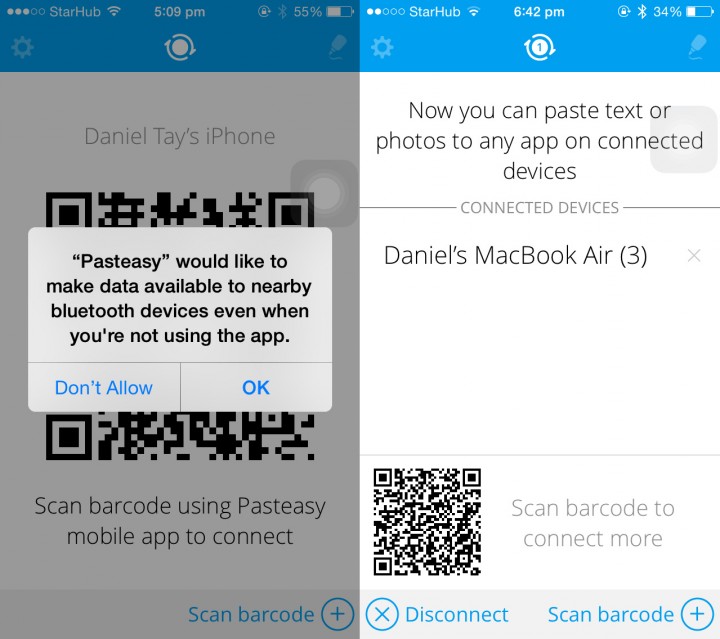
Pairing is done by using the smartphone to scan a barcode on the desktop app, as shown below.
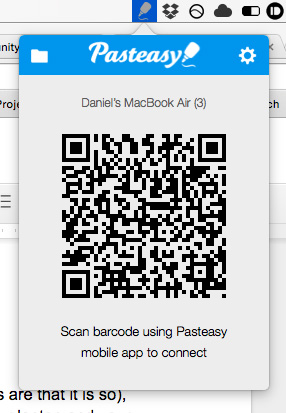
Once the devices are paired, any image or text that is copied on one device will appear right away on the other. To test this, I snapped a photo using my iPhone, and was pleasantly surprised to see it pop up almost instantly on my Macbook via a notification. The image was then accessible in a Pasteasy folder on the laptop, which is automatically created when the app is installed.
I tried this out with a screenshot, and it appears instantly on my Macbook as well, which is neat.
Copying and pasting text works slightly differently. When I first attempted to copy text on my iPhone, I couldn’t find it in the corresponding folder on my Macbook. Jhanji tells me that the text doesn’t appear in the folder, but instead is saved onto the laptop’s clipboard, ready to be pasted anywhere.





Stay updated on the go with our mobile app.
Get latest insights with smoother, more personalized experience through TIA mobile app.