
Photo: Cnet
Over on Sinosplice, John Pasden [1] points out the text-to-speech function in iOS 6, and notes that it can even read Chinese text even when your iPhone’s language is set to English [2].
To enable this function, you’ll need to go to:
settings > general > accessibility > vision > speak selection > on
From there, if you select a chunk of text on your screen, you can have it spoken to you by selecting the ‘speak’ pop-up option. I’ve not tested this, but I’m curious to see what other languages are supported.
Of course, this function is especially useful for language learners, either for checking to see how a word or character is pronounced. For me personally, I come across many characters in Japanese which I know from past Chinese study, but don’t know how to pronounce in Japanese. (I wonder which language iOS 6 will default to when given the same characters with no other context?)
Spoken and Translated Text on Mac OS X
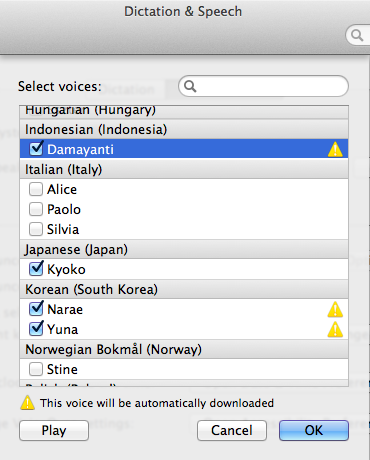
However, as useful as the above tip is, I still spend far more time in OS X than I do on a mobile device. But thankfully there are text-to-speech functions for your Mac as well. If you look under system preferences > dictation & speech > text to speech, you’ll find that you can change the system voice from the default ‘Alex’ to an assortment of other languages, including:
- Chinese
- China (Ting-Ting)
- Taiwan (Ya-Ling)
- Hong Kong (Sin-ji)
- Japanese (Kyoko)
- Korean (Narae and Yuna)
- Indonesian (Damayanti)
- Thai (Narisa)
After selecting some text to read on a webpage or in an app, you can right click and choose speech > start speaking (or just press option+esc). However, Apple warns that for best results, you should select a voice that speaks the system’s language. So it seems that if I want to use Japanese text-to-speech regularly, it would be better if I switch my system over to Japanese.
As for basic text translation options for Mac, you can always use the dictionary app, and ⌘+Crtl+D to trigger the floating dictionary. For me, I just need to make sure that my preferred dictionary is selected in the Dictionary application’s preferences.





Stay updated on the go with our mobile app.
Get latest insights with smoother, more personalized experience through TIA mobile app.









📅 Upcoming Events
22 October 2026
Payoneer x CSPN Summit 2026